Wednesday, 5 March 2014

Getting Help with Animation - Characters - 2nd Year Hana Lau

Following Hana's attempt at animating Betty with some props in a practice file I sent her, she has told me she would like to work on the the animation for my film but will only be able to animate simple shots due to her completing her own projects too.

This afternoon I sent Hana documents detailing the shots that would be suitable for her. I sent her a copy of the 'Animation Production Progress' as well as the 'Layouts' Excel documents. I sent her these through Dropbox this morning.


Hana is doing shots 8 to 13 with a total animation length of 12 seconds.

Tuesday, 4 March 2014

Example of Finished Character Rigs

All of the character assets and files have been completed and set up in Illustrator properly. Here are the characters and the outliners of both master character documents to show their layer hierarchy and naming conventions I have used.

Rig Features for both characters:

'MouthInterior' shape on its own layer behind all the head shape layers meaning a mask can be drawn on top of any of these and can be animated to show Betty opening and closing her mouth. If a head turn is required for any particular shot, copies of this 'MouthInterior' layer can be made and moved about in the layer hierarchy to be used for any head layer. 

BETTY


Pre-Comps


Heads


Mouths


Left Blinks (same for right blinks)

Example file for any shot, in this case shot 45, the most complicated rig I set up for Betty:

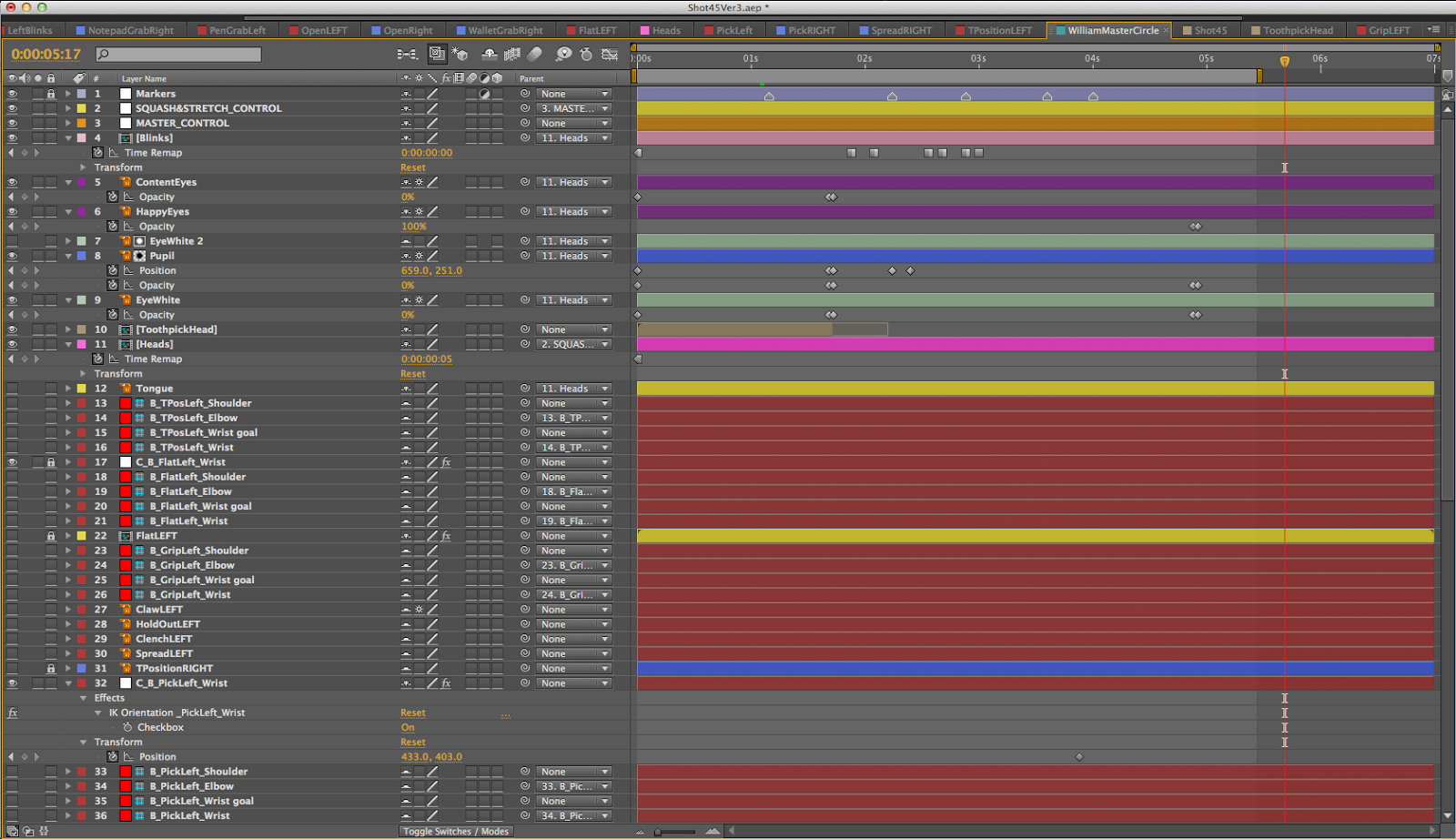
I used the free Duik plug in to make the arms and legs (in the below example the legs aren't rigged as Betty doesn't move, she slides in from the left off screen) IK which allowed more control over the movements, but restricted how much I could move the main body, especially rotated, (the 'MontageAssets' layer acts as the parent for most of the other layers as it is a central point in the character) the arm / hand pre-comps didn't move with the body rotation as the pins placed on them are literally pinned to their place in the comp. The only way the arm / hand pre-comps could be animated with the body was if they were animated separately as their own layer.

The screenshots below include all the layers including the hidden ones. These are the layers (control pins) from the Duik plug in and are hidden themselves)


WILLIAM


Pre-Comps


Heads


Mouths

Example file for shot 45, the most complicated rig I set up for William:


Side note:

I have created a burp mouth shape for William, however I don't think it'll be obvious what he will be doing when he burps because of the design of this asset. I am going to keep this for now, but may have to animate a mask to show him opening and closing his mouth too. I got the idea to use a mask instead from the animations seen in the link below.

Cartoonstock.com - Burp Animations

William the Waitress Costume Combinations:

Head and arm asset combinations


Fat Head and Fat Arms


Fat Head and Thin Arms


Square Head and Fat Arms


Square Head and Thin Arms

I decided to go for the last version of William as I feel making his head and arms fat, the only part of himself we actually see, is completely different to his state before the montage takes place. This would also confuse the audience a little so I decided to take it out and leave him in his square state.

Monday, 3 March 2014

Transferring Pre-Comps and Projects Between Projects

Instead of animating the character in the scene, if they don't interact with any props in the environment, they can be animated separately in a different pre-comp or project even and imported into the project with the layout. After Effects can't handle too much data at once, so I won't be able to animate several shots that require many custom layouts and/or character props in the same project. This is where careful and proper organisation of files and folders will come into play. 


Fig. 1. After Effects screenshot: Test Import - Bringing WilliamHeadTurnTest into DinerEast comp

To transfer a pre-comp in one project to a new project, select the pre-comp and go to File > Reduce Project (eliminates any unused assets in the timeline) and then go to Save As to create a copy of the whole project (main comp and pre-comps attached to the main comp). It's best to keep the Master layout projects in a separate folder and then export each copy into their own folder ready to be used with the characters.

Sunday, 2 March 2014

Production Documents Update

Throughout the production stage of this project, I have been referring back to the Excel documents I made during the pre-production stage and updating them as I have been illustrating the assets, setting up the layouts and deciding on the breakdowns of each shot including the camera work, character animation and prop interactions. The screenshots of the asset checklist and animation production progress include the version as it was one month ago and the updated version as of writing this blog post.

Asset Checklist


Fig. 1.1. Excel Screenshot - Asset Checklist on Tuesday 4th February.


Fig. 1.2. Excel Screenshot - updated Asset Checklist as of today - date Sunday 2nd March.

----

Animation Production Progress


Fig. 2.1 Excel Screenshot - Updated Animation Production Progress on Tuesday 4th February.


Fig. 2.2. Excel Screenshot - updated Animation Production Progress as of today - date Sunday 2nd March.


Layout Changes


Fig. 3. Excel Screenshot - Updated Layout Excel Sheet as of today - date Sunday 2nd March.

Now 'William Table' is the main layout instead of 'Diner West' for the shots where we see the west side of the diner. This is where William and Betty are in camera together so this is why this development in the layout organisation has been made.

Street Backdrop Scene

For the shots in which we see outside the diner, I have had to create a new layout which can be used as a backdrop. I am unsure whether to have this layout in 3D space, so when the camera moves round the scene in After Effects, we can see the backdrop moving in 3D space too, or have it as a plane with some blur to add depth to the layouts throughout the film which will feature this in the background through the diner windows.


Fig. ?. After Effects Quicktime of DinerPOVStreet Layout (WIP)

After testing this out in a shot, I think the plane will work much better

Saturday, 1 March 2014

Asset Creation Continued - WIPs

Over the past few weeks especially I have been trying to finish as much of the assets (characters, layouts and props) as possible so I could get on with the bulk of the blocking out stage of the animation phase with a deadline in mind of mid March. I have also been animating as many shots without the characters in them as possible to reduce the work load later. This way I wouldn't have to keep returning back to Illustrator and creating new assets each time. 

Betty's 'Wish List' assets


These will be shown in Shot 13 where we see Betty day dreaming of what she could buy with a huge tip from William

As you can see from above, I changed the standard stroke type to something with more of a brush stroke with texture. The reason I did this is because I need them to stand out against the layout and although they will also be in 3D space and rotating around Betty's head whilst she is day dreaming, they still need to be really clear to the audience.

----

Idea Development

I originally was going to look into doing a 2D animation in either Flash or After Effects of a mini montage of Betty receiving money from William, throwing it in the air and it raining her wish list items. I decided against this because it's too much and will add quite significant time to the film which is already 2 and a half minutes.

I looked at the credit sequences for Hotel Transylvania, Wreck-it Ralph and Cloudy with a chance of Meatballs 1 and 2 for inspiration.

Menus

Original Menu


My first attempt at designing the menu wasn't eye catching enough so I had to rethink the design 

Front and Back


----

Front 3/4 and Back 3/4


To create these I first copied the MenuFront and MenuBack layers and then used the Free Transform Tool (E) whilst selecting these copies and distorting their shape to create the impression they are in 3D space whiteout having to actually rotate the original font and back views in 3D space in the layouts in After Effects

William Menu Point 1


I decided to make the inside pages for when William points at his desired food as less cluttered as possible so the audience has less information to think about - this asset clearly says 'drink' and 'burger' which is all I need the audience to understand 

William Menu Point 2


This menu prop will be used for the shot where William points to all the food items he wants

Betty Check 1


This will be used in shot 25 when Betty has given William his first meal and she is writing his check. The pen and hand will be animated which will reveal the writing on the notepad. 

Moth


This will be used in most of scene 6 when the moth escapes the wallet and flies up towards the neon sign in the window

Betty Props


These are all the props Betty will interact with in the film

William Props


These are all the props William will interact with in the film

Character Head Turn Tests

To get a sense of 3D space in my film, not only am I setting up the layouts in 3D space with cameras, I am also making the characters appear 3D so they won't look stuck on top of the 3D scenes. The most important aspect of the characters to get right and create the illusion of them being in 3D space is the head turns.

I started with William because his head shape is difficult to get right in 3/4 view due to his nose being a right angled triangle. Betty is much easier because she has a circle for a head. 

William

William is the antagonist so the animation has to show he is the 'one to look out for' in the sense of what he is planning. I want the audience to get the idea that this character is Betty's match or opposite so I have decided to make his movements more quirky and stylised than Betty's. I think the animation style I am going for reflects the design, both in aesthetic and personality, of the characters equally.

First attempt at the head turn for William. His 3/4 head blend shapes (Head3/4Left, HeadLeftHOLD, HeadRightHOLD and Head3/4Right) also have both his eye pre-comps visible and animated between each other through the opacity property of both LeftEYE and RightEYE pre-comps. The animation is so quick and snappy that the audience doesn't get time to read the fact that both eyes are visible.


Fig. 1. Quicktime rendered from After Effects - WilliamHeadTurnTest1

Second attempt at the head turn for William. I hid the LeftEYE prec-omp from the timeline to see how he looks with just one eye shared between the two faces. I animated the RightEYE pre-comp through the position property and snapped between positions on 1's.


Fig. 2. Quicktime rendered from After Effects - WilliamHeadTurnTest2

Now that I have nailed the head turn, I can add mouth shapes. To get the idea, I just gave him a smile.


Fig. 3. Quicktime rendered from After Effects - WilliamHeadTurnTest3

Now that he has a smile, he needs some eye blinks ...


Fig. 4. Quicktime rendered from After Effects - WilliamHeadTurnTest4

Betty

Betty was much easier to work with because I knew how to get a head turn just right with William. Here I've given her smoother and gentler movements which reflects her personality of a caring young woman. For the montage sequence, I will animate her moving much quicker which will emphasise the severity of her situation as the audience will have gotten used to her soft gentle movements in the first two thirds of the film so when they see her hectic and rushing round stressing, we will sympathise with her and we feel she is out of her comfort zone. This will also be reflected in how she appears during and after the montage sequence through her messy uniforms and roughed up hair. 

When I showed Hilary the animation below yesterday afternoon, she quickly commented on how the ears appear and disappear too quickly and gives it a snappy appearance which isn't what I am going for with this character. To fix this, I will illustrate two in-betweens for her head shapes with the ears attached.


Fig. 5. Quicktime rendered from After Effects - BettyHeadTurnTest1

For the head turn blend shapes to work without having to redraw each hair blend shape and just animate the hair by key framing the scale property of the hair layer, I had to go back to the layers of the file and edit the sublayers a little so the head asset (the head itself and the hair) wasn't made up of three separate layers in After Effects but rather just the two - one for the head and one for the hair. I used the Minus Front tool so the 'HairFront' layer (pictured below) took away the top of Betty's head layer and made two separate layers out of the two shapes remaining. I then copied the new 'Head' layer twice and deleted the outlines for the ears - calling one HeadLEFT and HeadRIGHT.

Before


Fig. 6. Illustrator Screenshot of BettyMaster ai. file

After


Fig. 7. Illustrator Screenshot of BettyMaster ai. file